 Cenote
Documentation
Cenote Docs
Cenote is AI built for coding. Describe what you want, get real project files back, edit them in a workspace and preview websites live. These pages walk through each part of the app, one screenshot at a time.
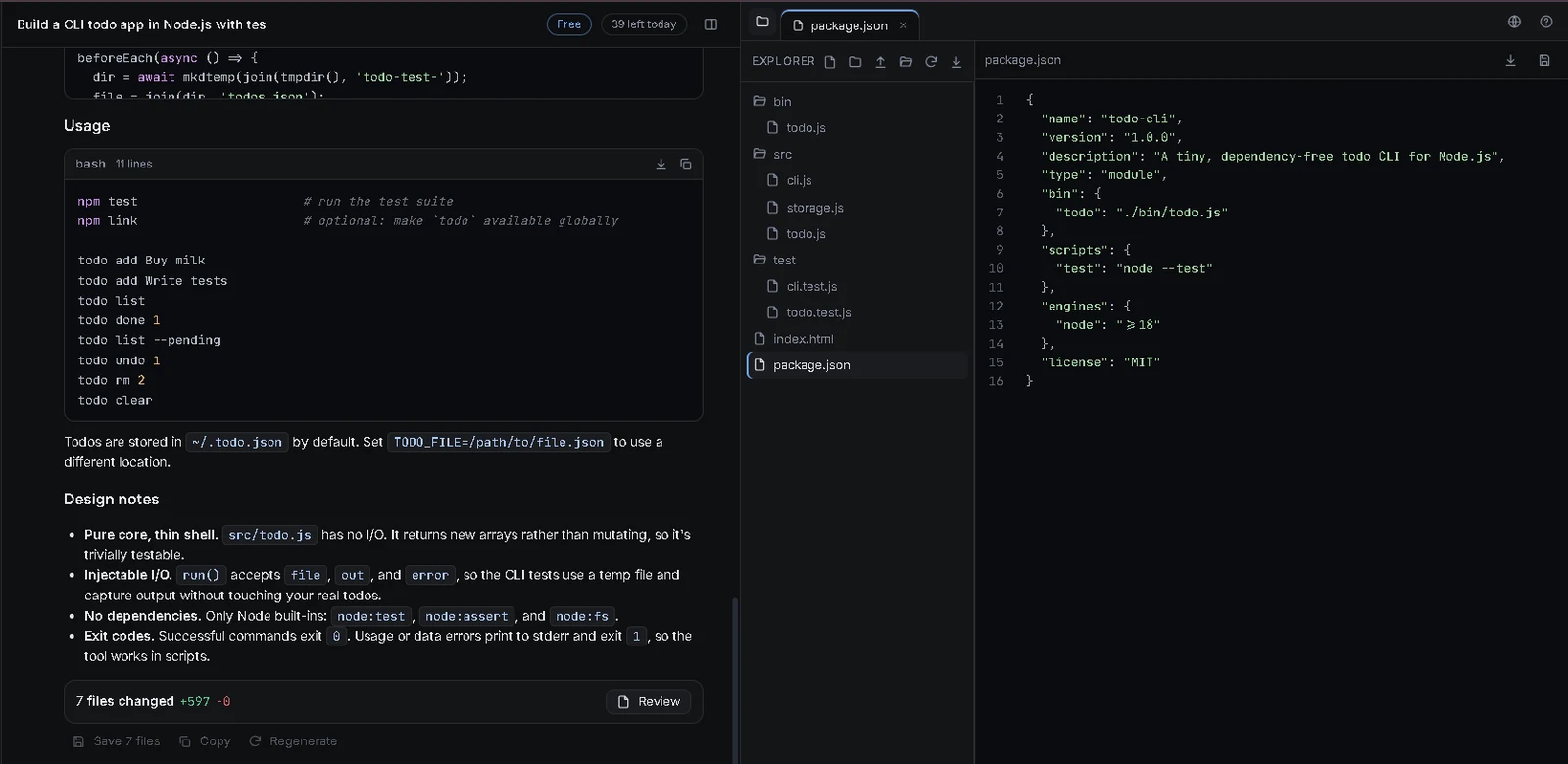
The chat on the left shows how Cenote answers a request for a command-line todo app. It lists the files, then a Usage section with the commands to run, then Design notes that explain the choices. The panel on the right holds the saved project.
Start a chat
Every session begins on the home screen. Type what you want to build, or click one of the starter prompts.
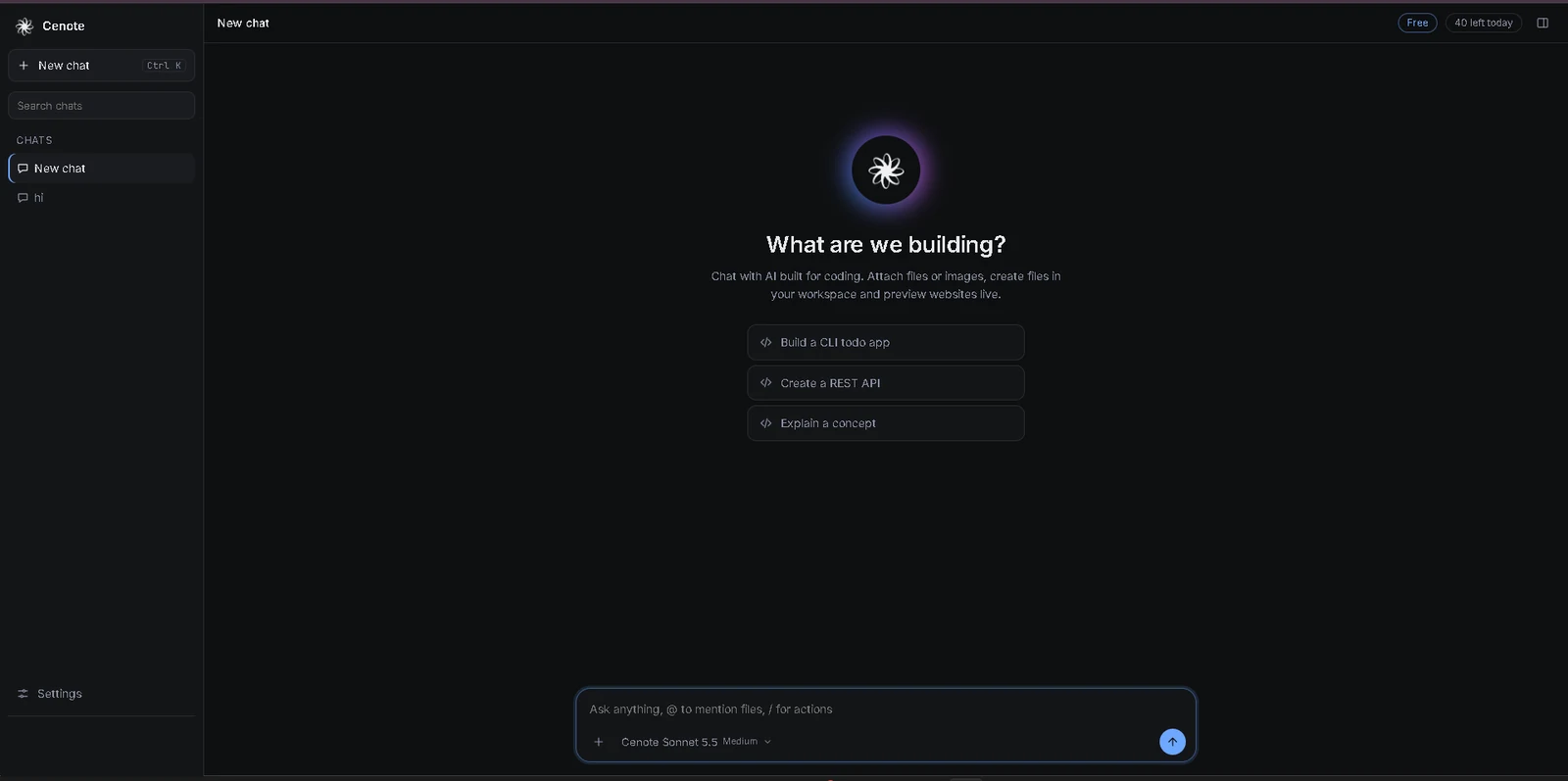
What you see on this screen
- Sidebar
- New chat starts a fresh conversation. The shortcut is Ctrl K. Search chats finds an older conversation. Your chats are listed under Chats. Settings is at the bottom.
- Top bar
- The name of the current chat is on the left. On the right, a badge shows your plan (Free here) next to the number of requests you have left today. A panel icon at the far right controls the side panel.
- Welcome area
- The heading asks What are we building? Under it is a one-line summary of what Cenote does, then three starter prompts: Build a CLI todo app, Create a REST API and Explain a concept.
- Message box
- The box at the bottom is where you type. It has its own section next.
The message box
The message box sits at the bottom of every chat. Everything you send goes through it.

- Text field
- The hint reads Ask anything, @ to mention files, / for actions. Type a normal request. Type @ to point at a file. Type / to see actions.
- Plus button
- Use it to attach files or images to your message.
- Model and effort
- Shows the model you are using and how hard it thinks, for example Cenote Sonnet 5.5 and Medium. Click it to change either one. See Models and effort.
- Send button
- The blue arrow on the right sends your message.
Create files
Ask for a project and Cenote answers with real files, not one long block of text. Each file arrives in its own block while Cenote is still writing.
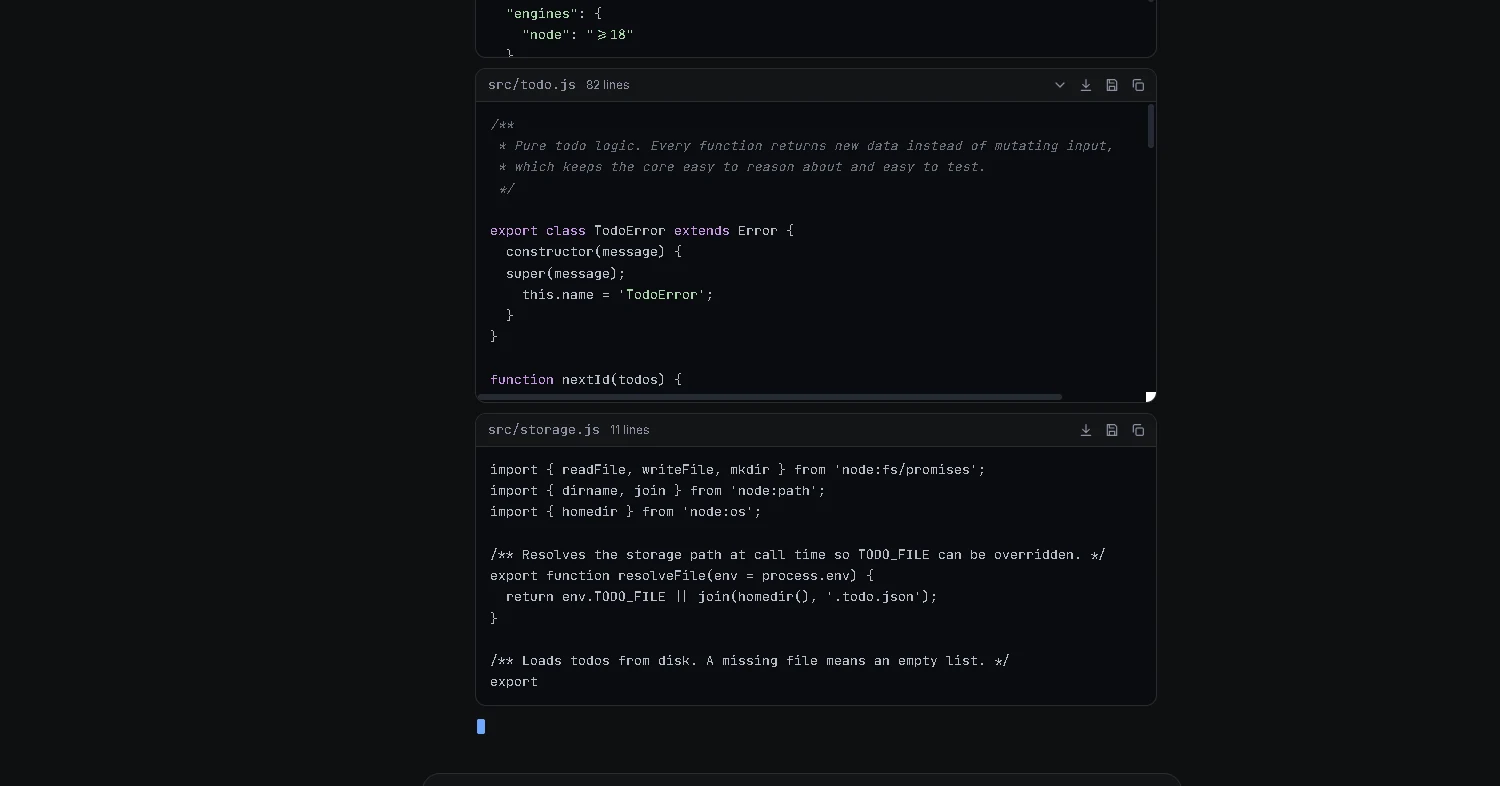
- File blocks
- Each block shows the file path, such as
src/todo.js, and its length in lines. - Block controls
- The icons at the top right of a block collapse it, download it, save it and copy it. Collapse a long file to keep the chat easy to scroll.
- Live writing
- A blinking cursor below the last block means Cenote has more to write. Files appear as they are produced.
- Long files
- A long block scrolls inside itself, so you can read it without losing your place in the chat.
Read the plan first
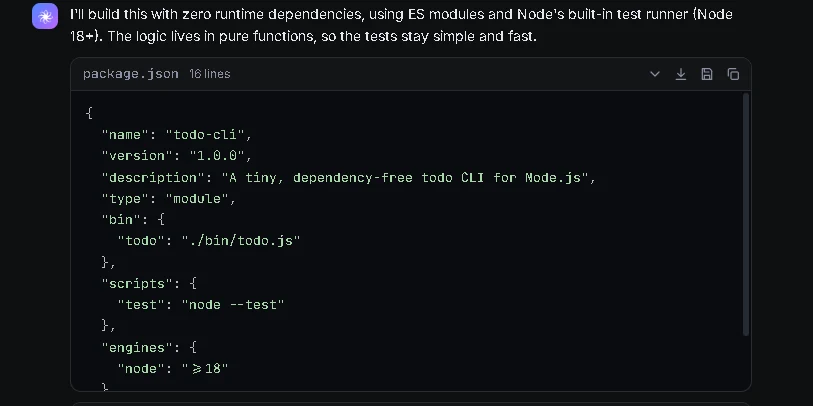
In this example Cenote says it will use zero runtime dependencies, ES modules and Node's built-in test runner, and keep the logic in pure functions so the tests stay simple and fast. The first file is package.json. After the files, Cenote adds a Usage section and Design notes, shown in the overview screenshot.
Review and save
When the answer is finished, a summary bar shows what changed and what you can do with it.

- 7 files changed
- The number of files in the answer. +597 in green is lines added and -0 in red is lines removed. A new project is all additions.
- Review
- Opens the changes so you can look through them before you keep them.
- Save 7 files
- Saves every file from the answer to your workspace in one step.
- Copy
- Copies the answer.
- Regenerate
- Asks Cenote to write the answer again.
The workspace
Saved files live in your workspace. The panel opens beside the chat, so you can read and edit files without leaving the conversation.
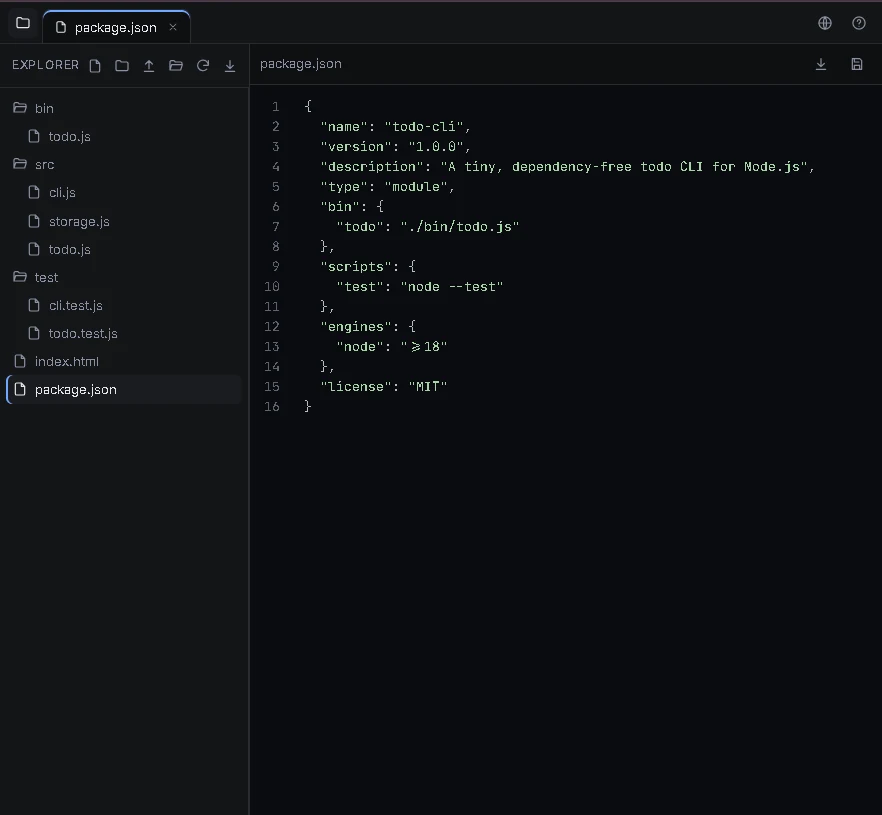
- Explorer
- Lists your folders and files. In this project that is
bin,srcandtest, plusindex.htmlandpackage.json. The row of icons above the list creates files and folders, uploads, refreshes and downloads. - Tabs
- Each open file gets a tab at the top. Click the x on a tab to close it.
- Editor
- Shows the file with line numbers. Change it by hand. The icons at the top right of the editor download or save the file.
Live preview
Websites you build can run inside Cenote. Open the Preview tab to see the page next to your code.
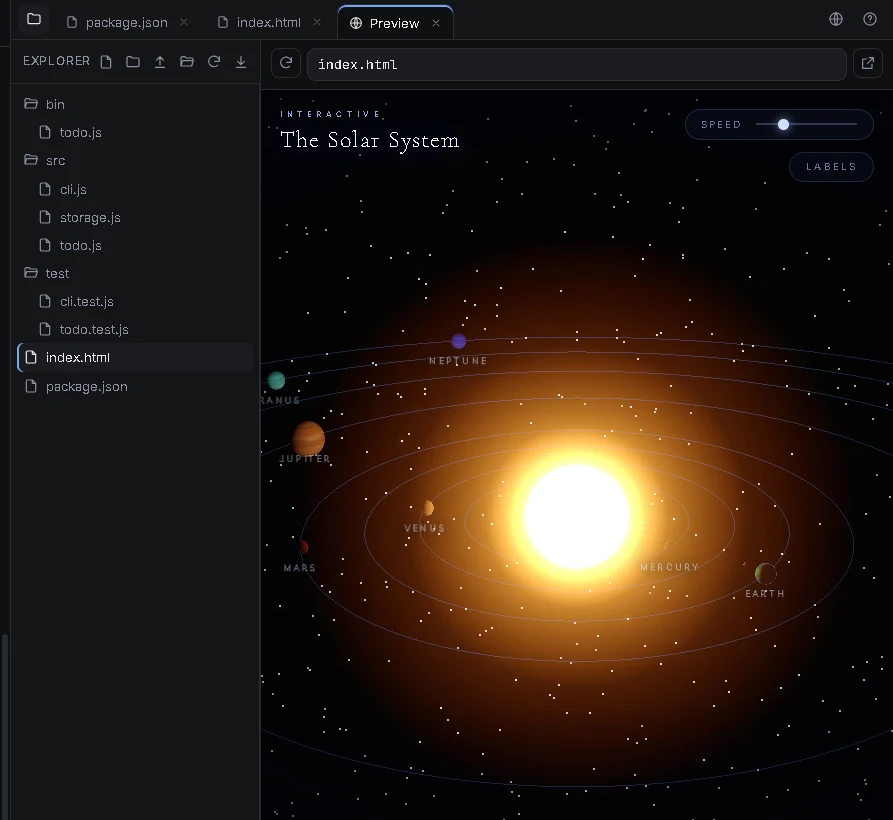
- Preview tab
- Sits beside your file tabs and uses a globe icon. It runs the site you built.
- Address bar
- Shows the file being previewed, here
index.html. The circular arrow on its left reloads the page after you change something. - Open in a new tab
- The button at the right end of the address bar opens the page in its own browser tab at full size.
- The page itself
- This example is an interactive solar system with a Speed slider and a Labels button. A preview is a normal web page, so buttons, sliders and animation all work.
Tip. Edit index.html in the editor, then press reload in the Preview tab to see the change.
Models and effort
Open the model menu in the message box to choose which model answers and how hard it thinks.
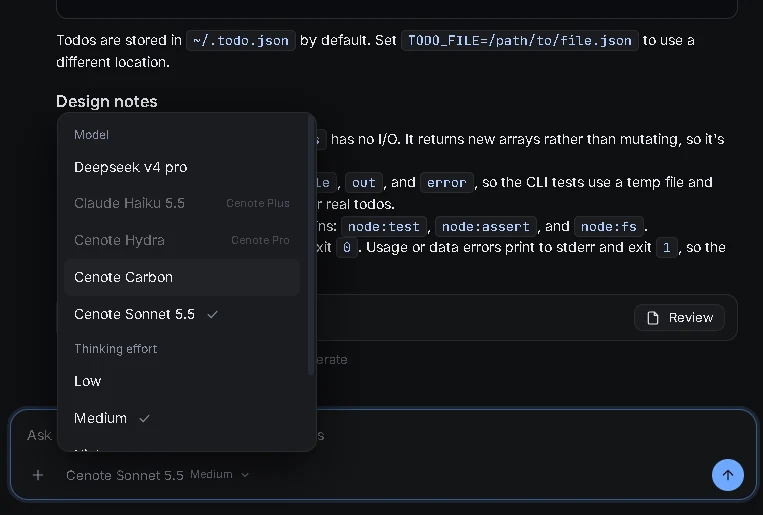
| Model | Available on |
|---|---|
| Cenote Sonnet 5.5 | Free Selected by default |
| Cenote Carbon | Free |
| Deepseek v4 pro | Free |
| Claude Haiku 5.5 | Cenote Plus |
| Cenote Hydra | Cenote Pro |
Models shown in grey need a higher plan. The label on the right of each one says which plan.
Thinking effort
Under the models, Thinking effort sets how long the model works on your request. Medium is the default.
Plan and daily count
The top bar always shows where you stand, so you know what you can use today.
- Plan badge
- Shows your plan. Free in these screenshots. Cenote Plus and Cenote Pro unlock the models marked with those names.
- Left today
- Your remaining allowance for the day. It reads 40 on the home screen and 39 after one request in the example chat.
FAQ
How do I start a new chat?
Click New chat at the top of the sidebar, or press Ctrl K.
How do I find an old chat?
Type in Search chats in the sidebar, or look through the list under Chats.
How do I point Cenote at a particular file?
Type @ in the message box and choose the file you mean.
Can I send images or files?
Yes. Use the plus button in the message box to attach them to your message.
Why can I not pick Claude Haiku 5.5 or Cenote Hydra?
They are marked Cenote Plus and Cenote Pro. You need one of those plans to use them.
What does "40 left today" mean?
It is the number of requests you have left for today. It goes down as you use Cenote.
Where do I sign in or get more help?
Go to cenote.bond. You can also ask the help chat, the round button at the bottom right of this page.
Nothing matches that search. Try a shorter word such as "model" or "preview".